
1. To set up text message alerts.
2. To set up text/SMS banking.
3. To understand text commands for text message banking.
1. To set up text message alerts:
Your digital banking settings give you the option to opt-in to text message alerts.
Step 1:
Log in to the online banking website.
Step 2:
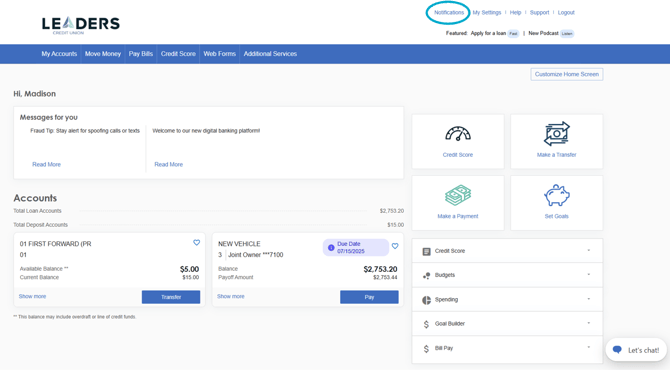
Click the "Notifications" button at the top right of your online banking home screen.
Step 3:
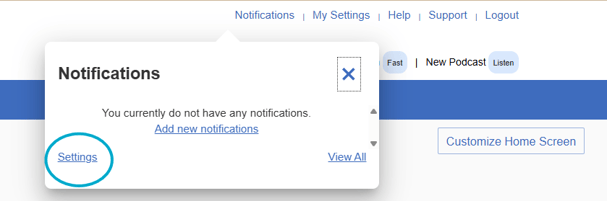
Click "Settings" when the notification modal appears.
Step 4:
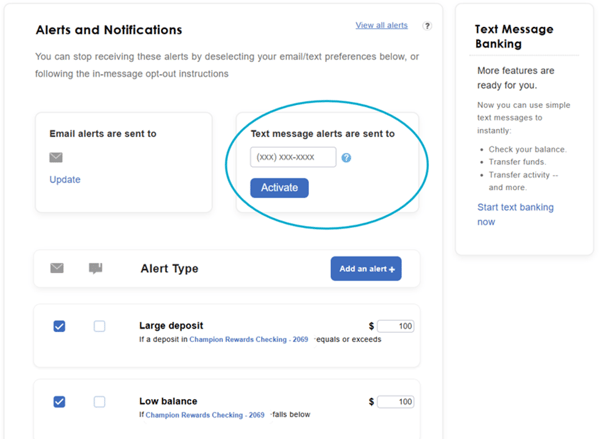
Enter your cell phone number that you will use for text alerts in the "Text message alerts are sent to" field...
Click "Activate".
Step 5:
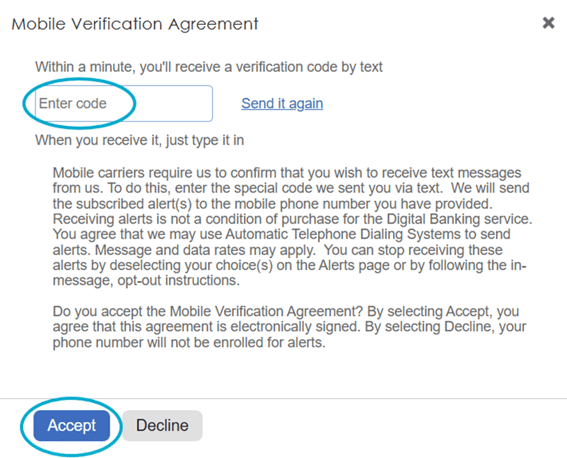
The Mobile Verification Agreement window will appear... In this window, enter the code that you received on your cell phone via text message. (Click "send again" if you did not receive a code).
Once you have entered the code, click "Accept" to acknowledge your acceptance of the agreement.
Congrats! You've successfully set up text message banking and alerts.
Any alerts that you have set up (i.e. Low balance or Large withdrawal) can be sent to you via text if the text icon is checked for the alert. This also applies for email alerts. Check the box for email or text message alerts for each individual alert and the type of communication you wish to receive.
2. To set up text message banking:
If you have already opted-in to text message alerts then you are ready to set up your text message banking. Skip to step 7.
If you have not yet opted-in to text message alerts, but you would like to set up text message banking....
Step 1:
Log in to the online banking website.
Step 2:
Click the "Notifications" button at the top right of your online banking home screen.
Step 3:
Click "Settings" when the notification modal appears.
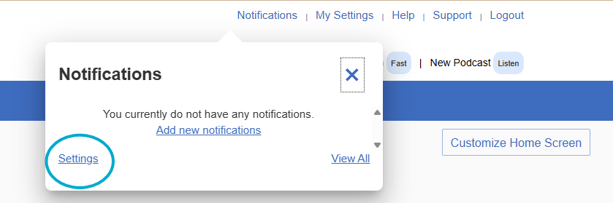
Step 4:
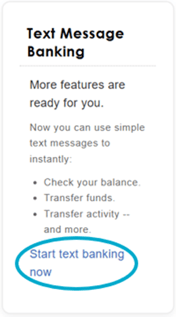
Click "Start text banking now" in the top right hand model of your notifications screen.
Step 5:
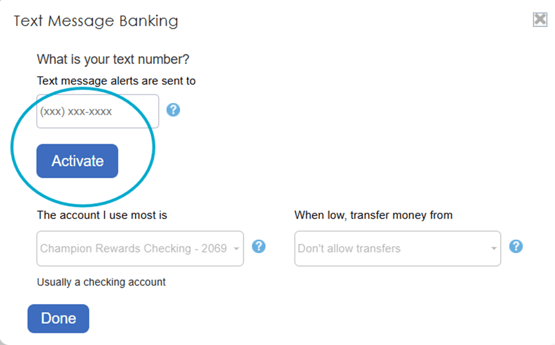
Enter your cell phone number that you will use for text message banking in the "Text message alerts are sent to" field...
Click "Activate".
Step 6:
The Mobile Verification Agreement window will appear... In this window, enter the code that you received on your cell phone via text message. (Click "send again" if you did not receive a code).
Once you have entered the code, click "Accept" to acknowledge your acceptance of the agreement.
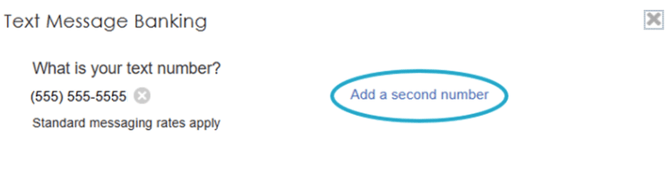
If you wish to enter another phone number that can access text message banking for your accounts, enter the additional number by clicking "Add a second number" and accepting the Mobile Verification Agreement again for the new number.
Step 7:
In the "Text Message Banking" modal, review "The account I use most is" selection and update the account, if needed, from the dropdown. (It will likely default to your checking account.)
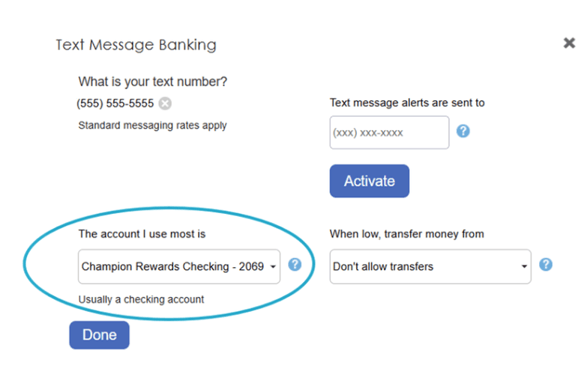
The account entered in "The account I use most is" field is the account you will receive balance updates for if you send the general "BAL" text command for a balance. It is also the account you will be able to TRANSFER FUNDS TO, if you use the "TRANS" text command to transfer funds.
Step 8:
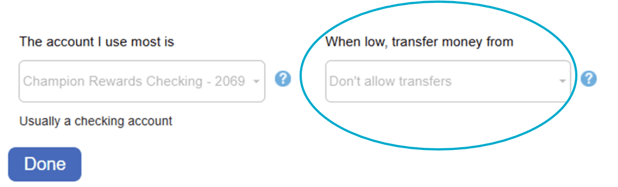
Now review the "When low, transfer money from" selection and update, if needed, from the dropdown. (It will default to "Don't allow transfers.") The selection made will be the account you wish to be TRANSFERRED FROM, if you use the "TRANS" text command to transfer funds.
Step 9:
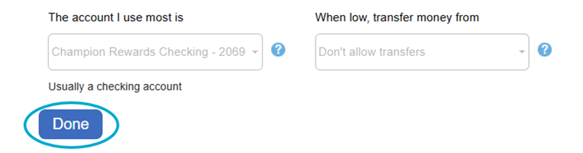
Once you have entered your desired selections in "The account I use most is" and "When low, transfer money from" dropdowns, then click "Done".
Step 10:
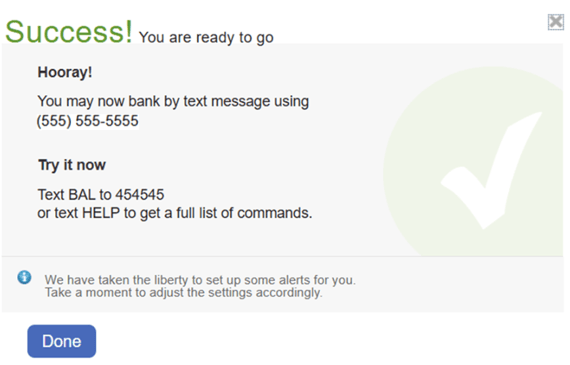
The success modal will appear. To get started using text message banking, text "BAL" to 454545. Or text "HELP" to get a full list of text message banking commands.
Click "Done" to go back to your notifications settings.
Congrats! You've successfully set up text message banking.
2. To use and understand text commands for text message banking:
If you have not yet set up text message banking, follow the steps in section 2.
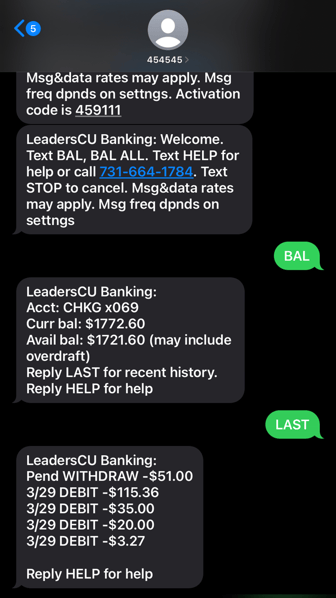
Text Command Definitions:
BAL for primary account balance.
BAL ALL for each account's balance.
BAL CHK for checking account balance.
BAL SAV for savings account balance.
LAST for last 5 transactions for primary account.
TRANS amount (i.e.TRANS 200) to transfer $ to primary account.
STOP to deactivate texting services.
HELP for a list of all text commands.
If you text STOP, you will no longer be able to use text message banking or receive general text alerts for this phone number. You will need to reactivate in online banking to use these services again.
Step 1a:
To receive a list of all text commands via text, text "HELP" to 454545.
Step 1b:
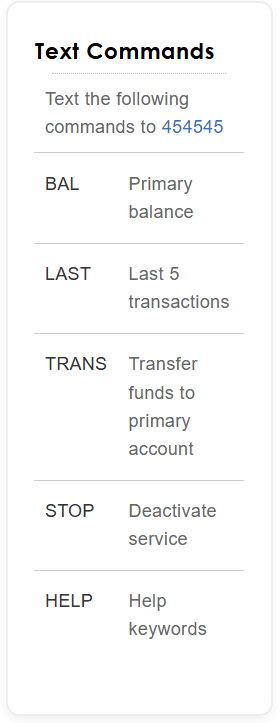
Review the list of text commands online by clicking "notifications" in the top right of your online banking home screen, and reviewing the text commands in the bottom right modal.
Notification settings list of text commands:
Leaders Credit Union is proud to offer digital banking tools to members at no cost.
Ready to get started? To login to online banking, click the login button in the upper right-hand corner of our webpage, and then enter your username and password.
Not a member yet? Apply now or stop by a branch today!
Want access to your accounts anytime, anywhere?
Download our mobile app today so you can:
- Transfer funds between accounts
- Pay bills using your Leaders checking account
- Deposit checks
- Pay at merchants using Apple Pay®, Android Pay® or Samsung® Pay!
- Find nearest branches and ATMs