
Adding/Removing a Beneficiary Adding a Beneficiary
Adding a Beneficiary
- Open a Transaction work area
- Search for the member
- Use the Chevron icon to open the Relationship Tree
- Right-click on the account, share, or loan in which you want to add a person
- Select Insert > Insert Share Person Link > Insert First or Insert Last
- In the Person field, select or search for the person.
- In the Category field, select Beneficiary.
- No other fields need to be Changed.
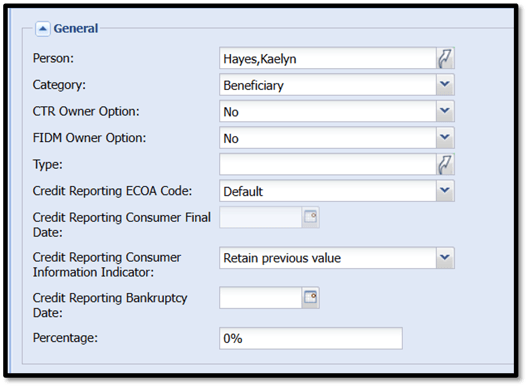
- Click Insert
- Repeat these steps for each account the beneficiary is being added to
- Complete and obtain Signatures on new MSA(s) showing beneficiary
Removing a Beneficiary
- Open a Transaction work area
- Search for the member
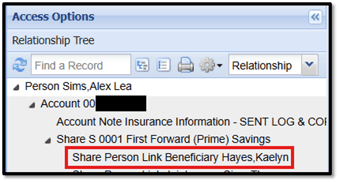
- Use the Chevron to open the Relationship Tree
- Click the record you want to remove
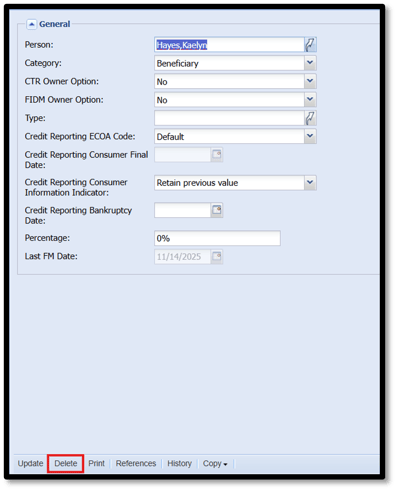
- In the resulting record, click Delete
- Repeat these steps for each account the beneficiary is being removed from
- Complete and obtain Signatures on new MSA(s) showing removal of beneficiary