
Change of Address Job Aid
Updating Existing Address Link
- Open a Transaction work area
- Search for a member
- In the personal panel click on the current address that needs to be updated
- When the Update box pops up, highlight the current address and hit backspace to remove the current address
- Start typing the new address and if an address record already exists, select the record from the resulting list.
- If the resulting address does not have the last 4 numbers in the zip code, we need to validate that address. (see the “Inserting a New Address Link in Keystone” section of this Job Aid to create a new address link)
- If an address record does not already exist – see the “Inserting a New Address Link in Keystone” section of this Job Aid.
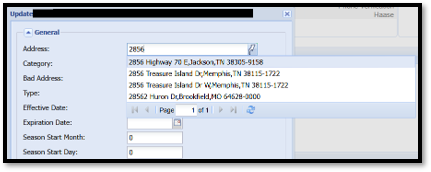
- Click Update
**CREATE A KEYINSIGHT TO DOCUMENT THE ADDRESS CHANGE**
Inserting a New Address Link
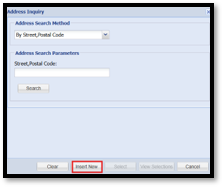
- Follow the same steps above, but if an address record does not already exist, you will need to Click on the Curved Arrow beside the address field

- An Address Inquiry box will pop up, and you will then have the option to Insert New
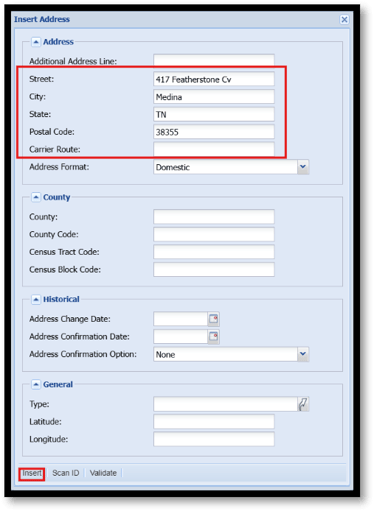
- Type in the New Address and Click Insert
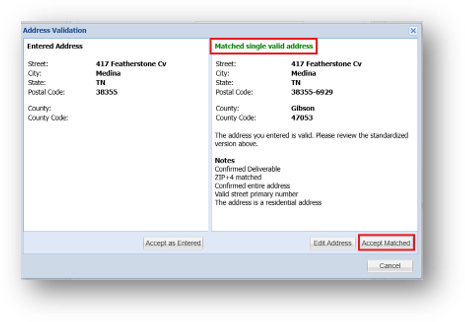
- Verify that the Address Validation shows that this is a “Matched Single Valid Address” and click on “Accept Matched”. This validates the address in Keystone and ensures that the address is in the correct format.
**CREATE A KEYINSIGHT TO DOCUMENT THE ADDRESS CHANGE**
Inserting an Additional Address
*If a member already has a physical address on file and wants to add an additional address or PO Box*
- Open a Transaction work area
- Search for a member
- In the personal panel click on the Blue Banner to add an additional address

- When the Insert Person Address Link box pops up, start typing the address and if an address record already exists, select the record from the resulting list
- If the resulting address does not have the last 4 numbers in the zip code, we need to validate that address. (see the “Inserting a New Address Link in Keystone” section of this Job Aid to create a new address link)
- If an address record does not already exist – see the “Inserting a New Address Link in Keystone” section of this Job Aid
- If this new address needs to be the mailing address, you can change the category field to Mailing

- Click Insert
- If the mail needs to go to the address that was just added, that address also needs to be the first address listed in the Address Box
- To do this, you will need to open your relationship tree and change it to standard view
- Click on the new address and drag and drop it just above the first address
- You will need to drop it when you see this icon
- The New Address should now be listed first in the address box in the personal panel