
Consolidating Person Records
Before you Begin
Review the two Person records, from the relationship tree (standard view), and verify the following items match
- Name; First, Middle, and Last
- Personal Section
-
- Birth Date
- Death Date
- Gender
- Marital Status
- Tax Section
-
- Tin Field
- Active Person record must have a completed TIN field
- Unused Person record must have a blank TIN field
- Backup Withold
- Tax reporting
- Tax State
- Foreign TIN field
- Tax Country Code
- Tax Person
- Tin Field
- General Section
-
- Category fields match
- OFAC Restriction
- Active person record must be set to No or Not Checked
- Unused record must be set to No
Steps
- Open a Transaction work area.
- Search for the active Person record that you want to keep.
- Open the Additional Options menu.
- Click Person Consolidation.
- In the Person Search window, select the unused Person record you want to delete.
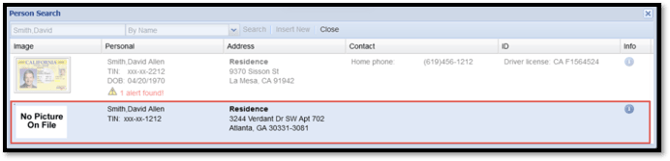
- In the Person Consolidation window, drag and drop sub records from the Source Person panel (unused Person record) into the Target Person panel (active Person record) to retain them without further changes or to copy their specific fields into an active sub record.
- If you want to retain the sub record without copying specific fields, drag and drop it into the Target Person panel above or below sub records of the same type, or into the active person's name.
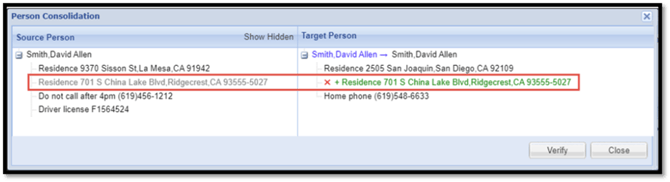
- If you want to copy specific fields from a sub record in the Source Person panel, drag and drop it into the Target Person panel on the same row as the sub record you want to merge it with.
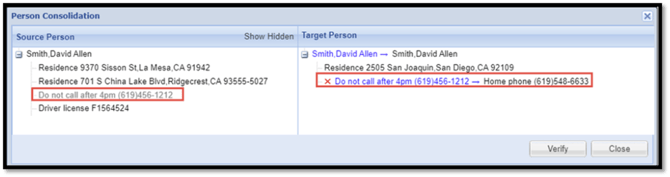
- Click the red X to remove the record from the Target Person panel.
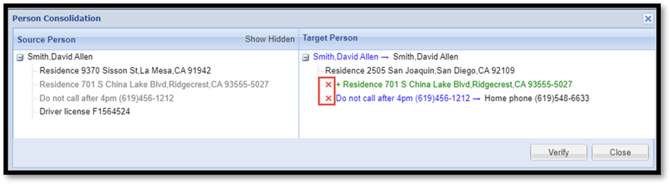
All the records you do not move to the Target Person panel are deleted when the transaction is posted
- If you want to retain the sub record without copying specific fields, drag and drop it into the Target Person panel above or below sub records of the same type, or into the active person's name.
- Click Verify to preview the FM history. KeyStone will not display the entire FM history if there are hundreds of changes
- Click Post
Result
KeyStone deletes the unused Person record and consolidates the specified sub records into the active Person record