Debit Card Creation
Vendor Issue & Instant Issue
- Open a Transaction work area
- Search for the member you will be creating a card for
- Verify the contact information we have on file is correct
- Navigate to Additional Options > Card Relationship
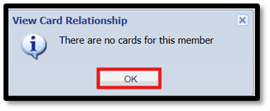
- If member has no cards on file, you will receive the following pop-up – Click OK
- Just below the Transaction Tab, Click Insert New Card
- In the Card Creation Options window, select or search for the Card Type to display the Card Options, Card Plastic Options, and Card Access Options sections.
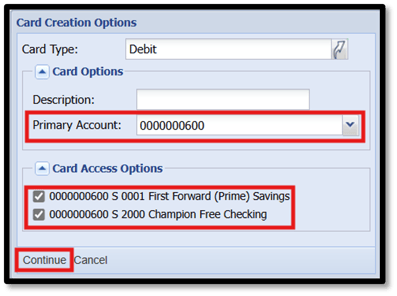
- In the Card Options section, select a Primary Account. (If member is on multiple accounts, there will be more than one option so be sure to select the correct account)
- In the Card Plastic Options section, select Instant Issue if printing in branch
- In the Card Access Options section, check the shares you want the card to access. (Be sure to only select accounts they are JOINT on)
- Click Continue to create the card record
- Emboss Fields: Used to print a member or business name that differs from the shell record
- In the Plastic Records section of the Card Subrecords, click Update
- In the resulting update window, enter an alternative first, middle, or last name (Be sure to fill all necessary fields when using the emboss fields as this overrides the entire value in the person field)
- Extra Emboss Line can be used for Business Names Only
- Click Update
IF MAILING CARD - STOP HERE (VENDOR WILL ISSUE CARD)
INSTANT ISSUE - CONTINUE ON TO THE NEXT STEPS
- In the Plastic Records section, select Issue Card
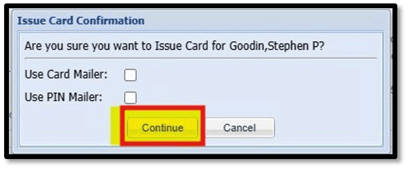
- Issue Card Confirmation: Select Continue
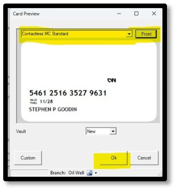
- Card Preview: Contactless MC Standard – click OK
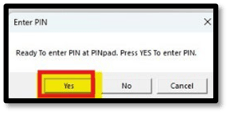
Member will enter PIN on PIN Pad
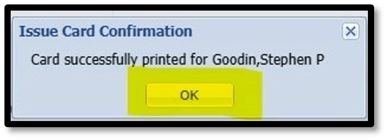
16. Issue Card Confirmation – Card Successfully Printed