
Fee Reviewer
Refunding Fees
- Open a Transaction work area and search for a member
- Navigate to Additional Options > Fee Reviewer
- You can also access Fee Reviewer by locating the Fee in the member’s transaction history and clicking on the Fee Transaction
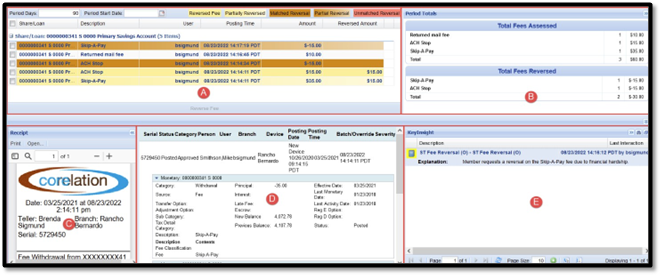
- Any fees that have been charged within the last 90 days will pop up automatically
- We can also filter these results by typing in the period days or period start date
- Check the box beside the fee you would like to Reverse & Click Reverse Fees
- Can be a Single Fee or Multiple Fees
- Select the Reason for the Fee Reversal (Options are built in)
- If Multiple Fees are being reversed and for the same reason, you can select the Reversal Reason, and it will default to all the boxes.
-
Post
Fee Reviewer will display the Fees and show the matched Reversals

- Create KeyInsight to Document Reversed Fees