
Loan Corrections
Reversing a Loan Payment – Back to Share
- Open a Transaction work area.
- Search for the member.
- In the Transaction Type field, enter LC for Loan Correction.
- In the Loan field, select the loan.
- Press the Tab key to move forward through each field.
- In the Transaction Date field, enter the date that the incorrect payment was made.
- In the Loan Correction: (Account Number Loan Description) window, locate the incorrect payment in the Transactions panel.
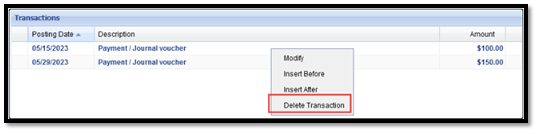
- Right-click the payment and select Delete Transaction.

- In the Description field, enter a comment to appear on the Member’s statement.
- Click Add to Ticker.
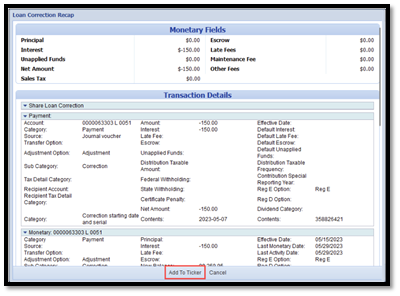
- In the Loan Correction Recap window, click Add to Ticker.
- Offset the transaction with a Deposit to the Share
- Click Post.
Reversing a Loan Payment – Posted to Incorrect Loan
- Open a Transaction work area.
- Search for the member.
- In the Transaction Type field, enter LC for Loan Correction.
- In the Loan field, select the loan.
- Press the Tab key to move forward through each field.
- In the Transaction Date field, enter the date that the incorrect payment was made.
- In the Loan Correction: (Account Number Loan Description) window, locate the incorrect payment in the Transactions panel.
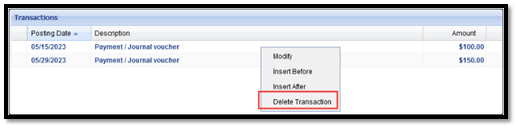
- Right-click the payment and select Delete Transaction.
- In the Description field, enter a comment to appear on the Member’s statement.

- Click Add to Ticker.
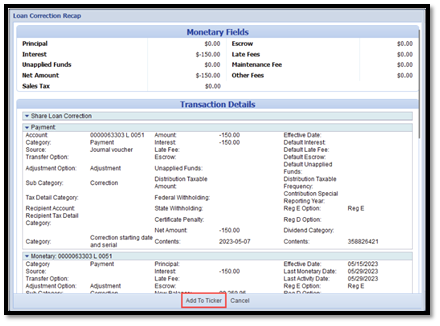
-
In the Loan Correction Recap window, click Add to Ticker.
-
Offset the transaction with a Credit to the GL Error Correction (999999.0000.00[Br#])
-
Click Post.
-
Pull member back up
-
In the Transaction Type select Effective Date(E) and Enter the Date that the payment was applied to the incorrect loan and hit TAB

Transaction Ticker should show Effective Date in red
-
In the Transaction Type select Payment (PA) and select the loan the payment should have been applied to and enter amount
-
Offset the Transaction with a Debit from the same GL we credited during the first step of the loan correction (999999.0000.00[BR#])
Modifying a Loan Payment – Applied Incorrectly
(Applied as Principal Only and Should have been Regular or Vice Versa)
- Open a Transaction work area.
- Search for the member.
- In the Transaction Type field, enter LC for Loan Correction.
- In the Loan field, select the loan.
- Press the Tab key to move forward through each field.
- In the Transaction Date field, enter the date that the original payment was made.
- In the Loan Correction: (Account Number Loan Description) window, locate the incorrect payment in the Transactions panel.
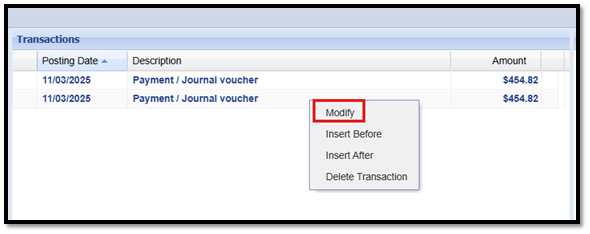
- Right-click the payment and select Modify.
- In the Modify Monetary window, update the transaction with the correct information.
-
If modifying the distribution of funds, select the correct value in the Subcategory field.
- Click Ok
- In the Description field, enter a comment to appear on the members statement
- Click 'Add to Ticker'
- In the Loan Correction Recap window, click Add to Ticker.
- Transaction balance should be $0.00 since no amounts are being changed
- Click Post.