
Loan Due Date Change
Payment must remain within the same month, and member must have made their first payment to perform a due date change
- Open a Transaction work area
- Open the Relationship Tree – Left Click on Loan Record to open the Update Tab
- At the bottom of this page click PROJECT
- Under Main Options
- Change Method to Maturity Date
- Change Payment Due date (within the same month)
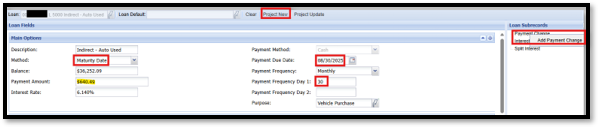
- Change Frequency Day 1 (if frequency is monthly)
- Example - New Due Date 8/12
- Payment Frequency Day 1: 12
-
- Under Loan Subrecords
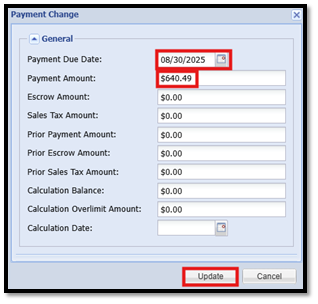
- Right Click on Payment Change – Add Payment Change
- Fill in new Payment Due Date
- Enter the current Payment Amount
- Click UPDATE
- Under Loan Subrecords
-
- Click Project New
- You will be able to see that the maturity date has changed
- Click Modify Loan
- Verify the Before and After Loan Modification Details to show that the only things changing are the Frequency Day, Due Date, and Maturity Date (Term could also be slightly affected)

- Verify the Before and After Loan Modification Details to show that the only things changing are the Frequency Day, Due Date, and Maturity Date (Term could also be slightly affected)
- Click Post Modification to complete the due date change
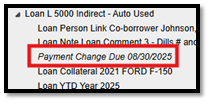
- Relationship Tree will show the Payment Change, and it will also show in the History of the Loan Record
- Click Project New
- Create a KeyInsight Interaction to Document the Due Date Change