
Pulling Credit and Chexsystems
Credit Report
- Open a Transaction Work area and search for a member
- Open the Relationship Tree (Relationship View)
- Right Click on the Member’s Name at the top of the Tree
- Hover over Insert
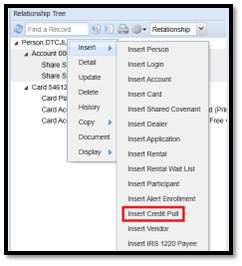
- Click on Insert Credit Pull
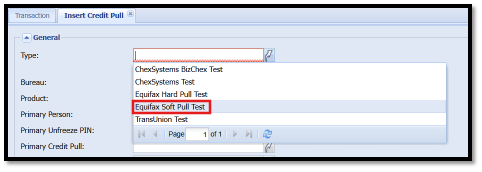
- Type: Hit your Down Arrow on your Keyboard to select the type of pull
- Click Insert at the bottom of the page

Once you have Inserted the Credit Pull, you will be able to see the report at the bottom of the Relationship Tree (Relationship View) - Left Click on the Credit Pull Record to open the Update Tab
 Scroll Down toward the bottom of the record and click on View Primary Report
 - This will allow you to view the Full Credit Report
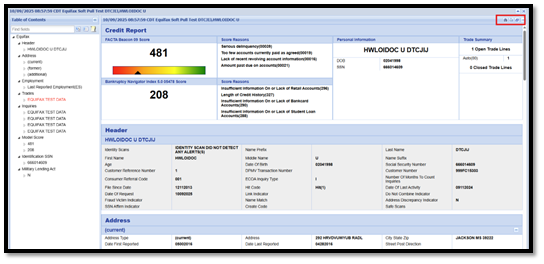
- There are multiple views of the Credit Report in the upper right-hand corner, so you can view the information to your preference
Chexsystems
- Open a Transaction Work area and search for a member
- Open the Relationship Tree (Relationship View)
- Right Click on the Member’s Name at the top of the Tree
- Hover over Insert
- Click on Insert Credit Pull
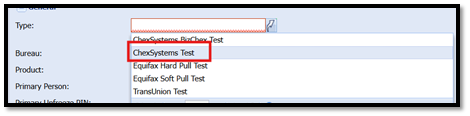
- Type: Hit your Down Arrow on your Keyboard to select the type of pull
- Click Insert

- Once you have Inserted the Credit Pull, you will be able to see the report at the bottom of the Relationship Tree (Relationship View)
- Left Click on the Credit Pull Record to open the Update Tab

Scroll Down toward the bottom of the record and click on View Primary Report - This will allow you to view the Full Chexsystems Report
- Will look identical to our Chexsystems Reports we see now