
Setting a Card for Travel
- Login to Client Central and access Card Console
- Search for a Cardholder
- Go to the Risk Summary page and select exemptions
- From the action menu
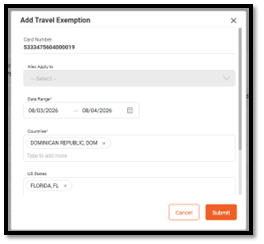
 click ‘Add Travel Exemption’
- To apply the same exemption to additional cards in the Card Carousel, select ‘Also Apply to’ dropdown list, if available.
- Enter the countries and US States member will be traveling through
- You can add up to 15 visiting countries and US States
- If a region is selected it will include all the states included in the created region (Southeast US, West Coast, etc.)
- Enter a note if needed
- Click Submit
- From the action menu
A cardholder can have up to two active travel exemptions, so there could be two trips with different overlapping date ranges
To Update a travel exemption, select ‘update’ on the right-hand side
-
-
Make changes and click submit.
-
To Delete a travel exemption, select ‘delete’ on the right-hand side
-
- Enter a note explaining action, click submit