
Same Day Check Correction
Correct the account
- Open a Transaction work area.
- Search for the member.
- In the Transaction Type field, enter SC for Share Correction.
- In the Share field, select the share.
- Press the Tab key to move forward through each field.
- In the Transaction Date field, enter the date the original transaction was posted to the share.
- In the Share Correction: (Account Number Share Description) window, locate the incorrect transaction in the Transactions panel.
- Right-click the transaction and select Modify
- Enter the correct amount in the Amount field.
- Click OK.
- In the Description field, enter ‘check correction’
- Click Add to Ticker.
- Offset the transaction by crediting/debiting the GL
- Transaction type field – GL
-
Account: 744220.0000.0018 VCCU – Deposits in Transit. Bold portion will be your branch number.
- Comment: Check Correction
- Reference: leave blank
- Entry type:
- Credit – if the actual check amount is LESS than what was scanned
- Debit – if the actual check amount is MORE than what was scanned
- Amount: correction amount
- Tab to add to ticker
- Click Post.
Delete and rescan check in Back Office mode
- Right click on icon
- Select ‘Switch to Back Office Mode’
- User: Your Name (Ex. BrennaW)
- If it shows Admin, highlight and type your username in
- Branch: will populate to your location
- Click ok to proceed
- Insert check into scanner
- Select ‘Start Scanning' icon
- Once scanned, verify check information is correct.
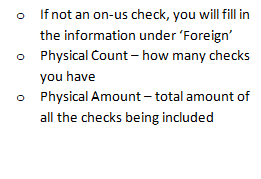
- In the bottom right-hand corner, manually fill in the information needed in the ‘Batch info’ panel.
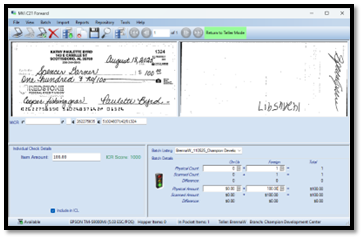
- Click the floppy disc icon to save.
- At the top of the screen click ‘Reports’ and select ‘teller totals’.
- Run your teller totals report
- Verify the rescanned check is populating, with the correct information on your teller totals report.
- Highlight the check that needs to be deleted and click the ‘X’ to Delete.