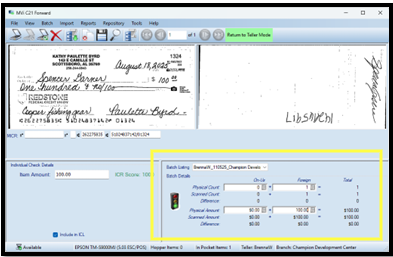
Scanning Checks in Back Office
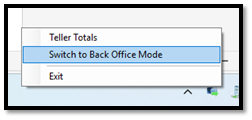
- Right click on icon in the bottom right hand corner
- Select ‘Switch to Back Office Mode’
- User: Your Name (Ex. BrennaW)
- If it shows Admin, highlight and type your username in
- Branch: will populate to your location
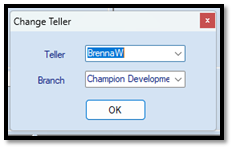
- Click ok to proceed
- Insert check into scanner
- Select ‘Start Scanning' icon
- Once scanned, verify check information is correct.
- In the bottom right-hand corner, manually fill in the information needed in the ‘Batch info’ panel.
- Click the floppy disc icon to save.
- Select ‘Return to Teller Mode’
- Verify check(s) are showing in teller total report