
Share/CD Secured Loan Job Aid
The term/payment on a secured share/cd loan can be set up to the member’s preference if the term does not exceed 144 months
Application Page
- Loan Information
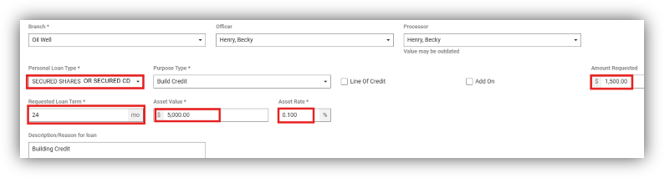
- Personal Loan Type – Select Secured Shares or Secured CD
If selecting Secured CD – Loans secured by an 11-month CD must be paid off by the maturity date. Final payment date must be date of maturity or before.
-
- Amount Requested – This amount must be available in the account being used as collateral
- Requested Loan Term – Cannot exceed 144 months
- Asset Value – Enter the Total Balance in the account being used as collateral
- Asset Rate – Enter the Highest Rate (Dividend Rate NOT APY) that the account being used as collateral can earn (Example: First Forward – 0.100%)
- Primary Applicant
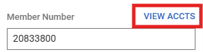
- After pulling in your member’s information, click on “View Accounts” above the box where you type in their member number
-
- This will generate a list of all the accounts the member has with us and will import all the account information to your assets section of the application
-
- Select the box beside the desired share, then click “import selected shares as assets”

-
- Fill out the remainder of the application page as usual, then scroll to your Assets Section at the bottom
- Assets
- You should see your share information from where you imported it to the application – click “edit” in the upper right hand corner

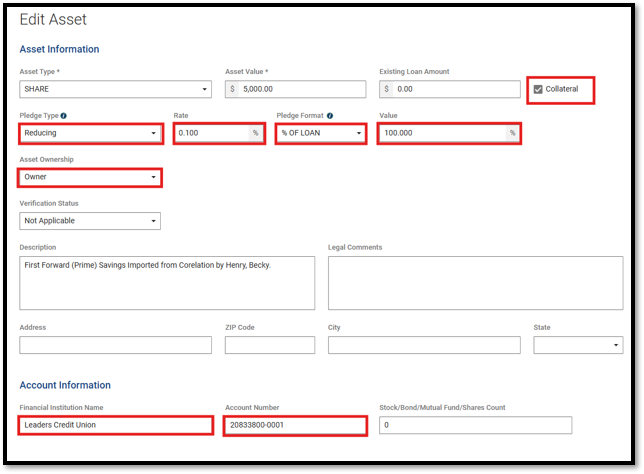
Your Edit Assets Page should always be filled out as follows:
-
- Asset Type – Share
- Asset Value – Balance in share being used as collateral
- Existing Loan Amount – If there is another loan against this collateral that will NOT be paid off with the new loan, enter that loan balance here
- ALWAYS check the box beside collateral
- Pledge Type – Reducing
- Rate – Enter the highest rate the share being used as collateral can earn (Dividend Rate NOT APY)
- Pledge Format - % of Loan
- Value – 100%
- Asset Owner – Owner (Unless using another member’s share as collateral – see separate cheat sheet)
- Financial Institution Name – Leaders Credit Union
- Account Number – Member Number – Share ID (Ex. 12345000-0001)
- If there are any additional assets listed, delete them
- Click “Select Qualifying Products”
- If everything is filled out correctly, you will get an instant approval
- If you do not get an instant approval, go back to the beginning of the job aid and check your work
- Once you have your instant approval, proceed with the application as usual
- REMINDER: Instant Approvals still require loan comments
Using a Different Member’s Share as Collateral
Application Page
- In the upper right-hand corner of the application page, click on “View Contacts”

- Contact Type – Asset Owner – Click “Add Contact”
- Add the following information for the owner of the share being used as collateral
- First & Last Name
- Phone Number
- SSN
- Address
- Add the following information for the owner of the share being used as collateral
- Fill in the remainder of the Application Page as usual, then scroll to the Assets Section at the bottom
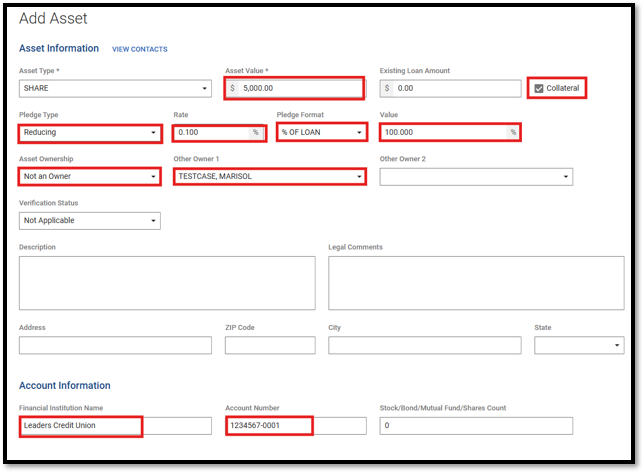
- Click “Edit Asset”
- Asset Type – Share
- Asset Value – Enter the Amount the applicant will be borrowing
- Existing Loan Amount - $0
- ALWAYS Check the box beside collateral
- Pledge Type – Reducing
- Rate – Enter the highest rate the share being used as collateral can earn (Dividend Rate NOT APY)
- Pledge Format - % of Loan
- Value – 100%
- Asset Ownership – Not an Owner
- Other Owner 1 – Select the Contact you Created
- Financial Institution Name – Leaders Credit Union
- Account Number – Member Number – Share ID (Account being used as Collateral)
- If there are any additional assets listed, delete them
- Click “Select Qualifying Products”
- If everything is filled out correctly, you will get an instant approval
- If you do not get an instant approval, go back to the beginning of the job aid and check your work
- Once you have your instant approval, proceed with the application as usual
- REMINDER: Instant Approvals still require loan comments