
Share Corrections
 Insert a Monetary Transaction
When a transaction needs to be posted to an account on a previous date
- Open a Transaction work area.
- Search for the member.
- In the Transaction Type field, enter SC for Share Correction.
- In the Share field, select the share.
- Press the Tab key to move forward through each field.
- In the Transaction Date field, enter the date the original transaction was posted to the share.
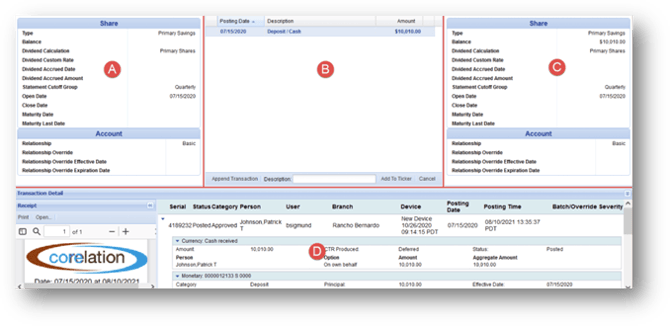
- In the Share Correction: (Account Number Share Description) window, locate the incorrect transaction in the Transactions panel.
- Right-click the transaction and select Insert Before or Insert After. If there is no transaction to right-click, click the Append Transaction button located at the bottom of the window.
- In the Insert Transaction window, change the Select Transaction Type field to Monetary.
- Click OK.
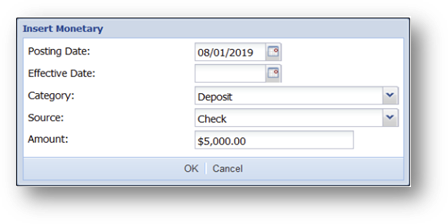
- In the Posting Date field, enter the date the transaction should have occurred.
- Leave the Effective Date field blank.
- In the Category field, select Deposit or Withdrawal.
- In the Source field, specify how the transaction was made, for example, Check.
 The Source is only used to determine if it is a dividend, so it is not important to specify it exactly except for the case of dividends. If it is not a dividend, you can leave it as the default of Journal Voucher.
 - In the Amount field, enter the transaction amount.
- Click OK.
- In the Description field, enter a comment to appear on the member’s statement.
- Click Add to Ticker.
- In the Share Correction Recap window, click Add to Ticker.
- If additional changes are to be made, click Cancel to bring up the share correction window.
- Offset the transaction.
- Click Post.
Modify a Monetary Transaction
When a transaction amount was put in incorrectly
- Open a Transaction work area.
- Search for the member.
- In the Transaction Type field, enter SC for Share Correction.
- In the Share field, select the share.
- Press the Tab key to move forward through each field.
- In the Transaction Date field, enter the date the original transaction was posted to the share.
- In the Share Correction: (Account Number Share Description) window, locate the incorrect transaction in the Transactions panel.
- Right-click the transaction and select Insert Before or Insert After to display the Modify Monetary window.
- If modifying the day the transaction was posted, change the Posting Date field to the correct date.
- If modifying the source of funds, select the correct value in the Source field.
 The Source is only used to determine if it is a dividend, so it is not important to specify it exactly except for the case of dividends. If it is not a dividend, you can leave it as the default of Journal Voucher.
- If modifying the transaction amount, enter the correct amount in the Amount field.
- Click OK.
- In the Description field, enter a comment to appear on the member’s statement.
- Click Add to Ticker.
- In the Share Correction Recap window, click Add to Ticker.
- If additional changes are to be made, click Cancel to bring up the share correction window.
- Offset the transaction.
- Click Post.
Delete a Monetary Transaction
When a transaction is deposited into the wrong account
- Open a Transaction work area.
- Search for the member.
- In the Transaction Type field, enter SC for Share Correction.
- In the Share field, select the share.
- Press the Tab key to move forward through each field.
- In the Transaction Date field, enter the date the original transaction was posted to the share.
- In the Share Correction: (Account Number Share Description) window, locate the incorrect transaction in the Transactions panel.
- Right-click the transaction and select Delete Transaction. The transaction will immediately be removed from the Transactions panel.
- In the Description field, enter a comment to appear on the member’s statement.
- Click Add to Ticker.
- In the Share Correction Recap window, click Add to Ticker.
- If additional changes are to be made, click Cancel to bring up the share correction window.
- Offset the transaction with the account it should have gone into (if it is the same member)
- If the transaction should have gone into another member’s account, move to step 15.
- Click Post
- Offset the transaction by crediting the error correction GL for your branch
- Click Post
- Pull up the member that the deposit should have been credited to
- In the Transaction Type field, enter SC for Share Correction.
- In the Share field, select the share.
- In the Transaction Date field, enter the date the original transaction was posted to the share.
- Select Append Transaction at the bottom of the window
- Transaction Type: Monetary - OK
- Fill in the Posting Date & Effective Date
- Category: Deposit
- Source: Journal Voucher
- Amount: Type in amount of original Deposit – OK
- Click Add to Ticker.
- In the Share Correction Recap window, click Add to Ticker.
- Offset the Transaction by Debiting the Error Correction GL for your branch
- Click Post